These instructions are preserved for older Leaf units running firmware v0.1.7 or earlier. If your Leaf is already running newer firmware, use the current Firmware Updates section.
WiFi Firmware Updates
NOTE: Leaf requires a 2.4 GHz WiFi network and is not compatible with 5 GHz-only networks.
Leaf can update to the latest firmware over WiFi. To configure the Leaf WiFi Settings, you'll need another device (phone or computer).
Here's the process:
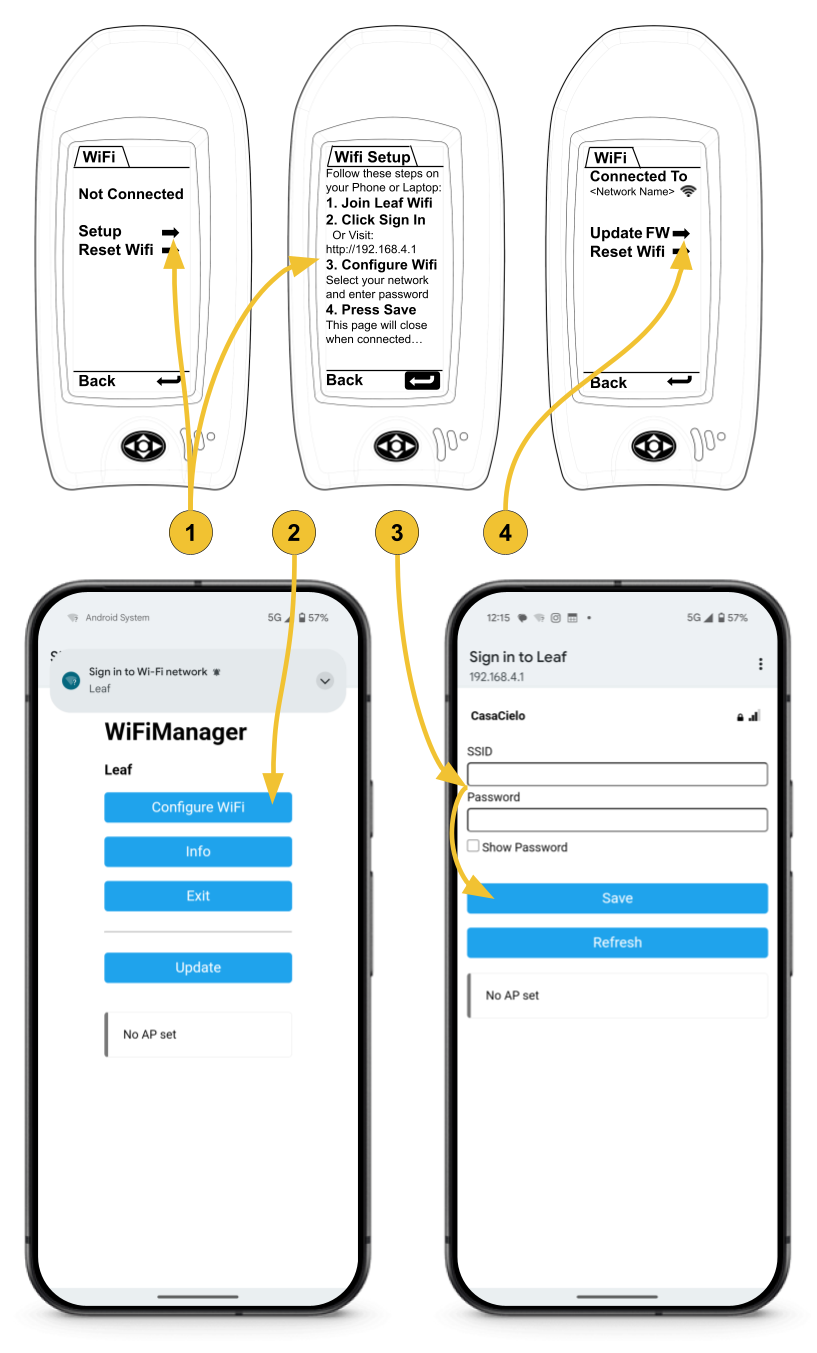
- Enter the Manual WiFi Setup Mode on Leaf: Main Menu➡️System➡️WiFi➡️Setup
- Switch to your other device, then find and join the "Leaf" WiFi Network. This should bring up a WiFi Manager page. If it doesn't come up automatically, you may first need to click "Sign in to Leaf WiFi" on your device, or visit http://192.168.4.1). ➡️Click "Configure Wifi"
- Select your WiFi Network from the list (or type it in), and enter the password. Remember the SSID and password fields are Case Sensitive. ➡️Click "Save" Leaf will then attempt to connect to your WiFi Network. If successful, Leaf will automatically exit the "Setup" page, and show connection status.
- Now click "Update FW" on Leaf to automatically check for and download the latest firmware. Leaf will restart when finished checking and/or updating.
NOTE: For Updates In-The-Field
If WiFi is not available and you would like to use your cellular internet connection to update Leaf, follow these steps:
- Turn on and configure your WiFi Hotspot feature on your phone/device. Be sure to remember the SSID Name and Password.
- Follow steps #1-3 above to connect to the Leaf Network and enter your Hotspot information into the Leaf WiFi Manager. Note that connecting to the Leaf Network on your device will likely automatically turn off your Hotspot feature. This is ok.
- Immediately after clicking "save" in Step #3, again turn on your device's Hotspot Feature.
- Leaf will try to connect to the Hotspot network. If successful, update Leaf firmware as described in step #4 above.
- Once Leaf has updated and restarted, you can turn off your Hotspot feature.